


Table of Contents
-
Sharing SharePoint Files With External Users Without Slowing Client Work
-
SharePoint File Sharing With Outside Users And Daily Risk Control
-
How To Share SharePoint Files With External Users Through Microsoft Teams
-
Safer Sharing Of SharePoint Files With External Users Step By Step
-
Getting Help With SharePoint File Sharing For External Users
A legal assistant is waiting in Teams for partner approval while a client asks for the latest contract file. Sharing SharePoint files with external users matters because one link can move an invoice review, board packet, vendor backup, or signed document forward. It also needs care, since on average 10% of a company’s Microsoft 365 data is open to all employees.
Rahul Dewan, CTO at Rollout AI, notes: “Before sending a SharePoint link, confirm who needs access, when access should end, and who owns the review if the client says it doesn’t work.”
Sharing SharePoint Files With External Users Without Slowing Client Work
External sharing has to move at the pace of the work. A client is waiting on a signed engagement letter, an accountant needs invoice backup, or a board member needs a packet before the meeting. Speed matters, but so does knowing who can open the file and why.
-
Know the file type: A public brochure is not the same as a tax return, lease file, or draft settlement memo. The file should shape the sharing rule.
-
Choose the right audience: Send access to named people when the file has private data. Broad links create cleanup work later.
-
Set a clear owner: One person should approve access, answer questions, and close the loop in Teams.
-
Plan for support: With 55% of employees adopting SaaS without security’s involvement and 57% reporting fragmented administration, staff need plain-English help from a dedicated contact who knows how the work gets done.
That first decision saves time later. Permissions, expiration dates, Teams coordination, and support ownership become clearer from the start.
|
External request scenario |
Recommended sharing pattern |
Business owner to confirm |
Operational guardrail |
|---|---|---|---|
|
Client asks an account manager for a signed statement of work |
Share a single PDF from the client project folder |
Account Director approves the recipient email domain |
Set view-only access and a 14-day expiration date |
|
Outside counsel reviews a contract redline |
Use a restricted folder for the legal matter |
General Counsel confirms named reviewers |
Block download and require sign-in with the law firm account |
|
Vendor needs invoice backup for payment processing |
Share only the invoice packet, not the finance library |
Accounts Payable Manager validates the vendor contact |
Remove access after payment approval in the ERP system |
|
Partner team co-edits launch materials in Teams |
Create a dedicated channel or workspace for the campaign |
Marketing Operations Lead owns membership changes |
Review guest users weekly before the launch date |
SharePoint File Sharing With Outside Users And Daily Risk Control
Risk usually starts in normal work. Someone reuses an old link, rushes a client request, or leaves broad access in place after an outside review ends. The operating question is simple: who can see what, for how long, and who owns the check?
-
Limit access to the task
An external accountant needs one folder for year-end invoices, not the full finance library. Smaller access means fewer follow-up questions and cleaner reviews.
-
Use named people when needed
For opposing counsel document review, send access to the reviewer’s work email. That keeps the approval thread clear if a paralegal needs to confirm delivery.
-
Give links an end date
Investor packets and tenant files often have a short review window. An end date keeps old work from staying open after the deal, renewal, or meeting passes.
-
Review access on schedule
A monthly link check is easier than sorting years of old shares. Plain-English security reports help teams act without decoding system settings.
-
Tie access to ownership
The person who approves vendor invoice backup should also know when access ends. Clear ownership reduces rework when finance closes the month.
How To Share SharePoint Files With External Users Through Microsoft Teams
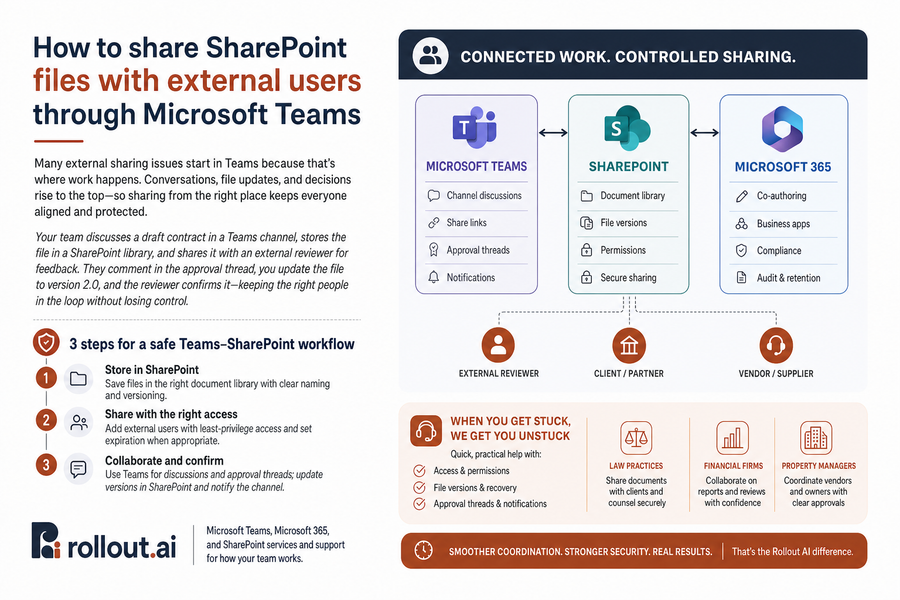
Many sharing issues start inside Microsoft Teams because that’s where the work is already moving. A channel holds the discussion, the file sits in a SharePoint document library, and someone sends a link while the approval thread is still active.
Picture a property manager reviewing a vendor invoice in Teams while the owner asks for backup before payment. The file version in SharePoint must match the message in the approval thread. If the owner can’t open the link, the team needs quick help with access, permissions, or the current version, not a long support handoff.
-
Confirm the working file
Open the file from the Teams channel and make sure it’s the right SharePoint version before sending anything outside the group.
-
Share from the right place
Use the SharePoint file or folder tied to the channel, then choose access that fits the reviewer and the deadline.
-
Keep the thread together
Post the share note in Teams so the approval, support ticket, and file update stay easy to trace.
Related IT Workflow Guides
Share SharePoint Files Safely
Client handoffs move faster when access is clear. Rollout AI helps MSPs tighten external sharing workflows without adding friction.
Safer Sharing Of SharePoint Files With External Users Step By Step
Changing file habits takes patience. People already email attachments, save copies to personal drives, and answer last-minute client requests under deadline pressure. Simple rules help the team move faster without guessing.
-
Choose share-ready folders: Decide which SharePoint folders can be used for outside reviewers, such as client upload folders, vendor invoice backup, or board packet review. Keep private working drafts somewhere else.
-
Name access approvers: Assign owner roles by area, such as finance, matters, properties, or client service. Staff should know who can approve access before a deadline gets tight.
-
Use expiration dates: Set end dates for short-term work, like tax prep files, due diligence folders, or signed document review.
-
Review old links: Put a routine link review on the calendar. We like this because it turns support from a last-minute fix into a simple habit.
-
Teach when to ask: Train staff to ask for help when a client can’t open a file or when access feels unclear. Unlimited support means they don’t have to weigh a small question against a ticket budget.
Getting Help With SharePoint File Sharing For External Users
When file sharing is set up well, client handoffs move faster, approvals get stuck less often, access is safer day to day, and everyone knows who owns the next step. We review SharePoint, Microsoft 365, and Microsoft Teams so your team has clear rules, quick help when links fail, and proactive guidance before the same issue repeats.
If file sharing keeps slowing client work, contact Rollout AI. We can take a practical look at your setup with a dedicated contact, under 15-minute response time, and transparent $85 per seat per month pricing for unlimited support. No surprise invoices.